CapX
CapX is XRecer's own tone-capture technology. It uses AI to learn the sound and response of your amp or pedal and stores the result on XR1 as a capture, which you can then use like any other effect in the Signal Chain.
XR1 trains the capture on the unit. You can train with CapX, or with Neural Amp Modeler (NAM), the open-source project created by Steven Atkinson.
A capture has four stages: connect, set levels, train, then audition and save.
1. Connect the Target Device
The amp or pedal you want to capture is called the target device.
Warning
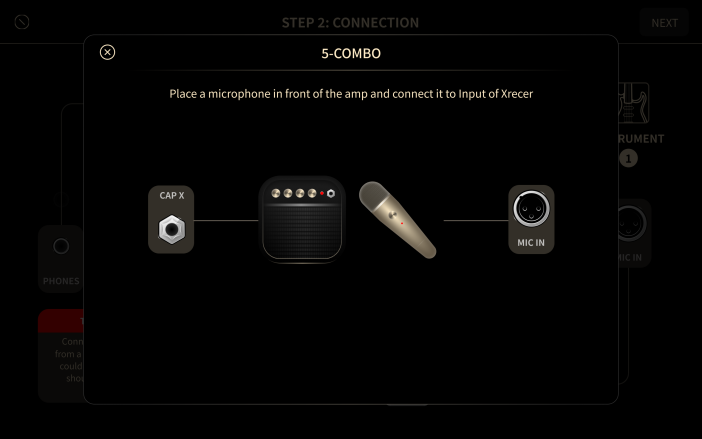
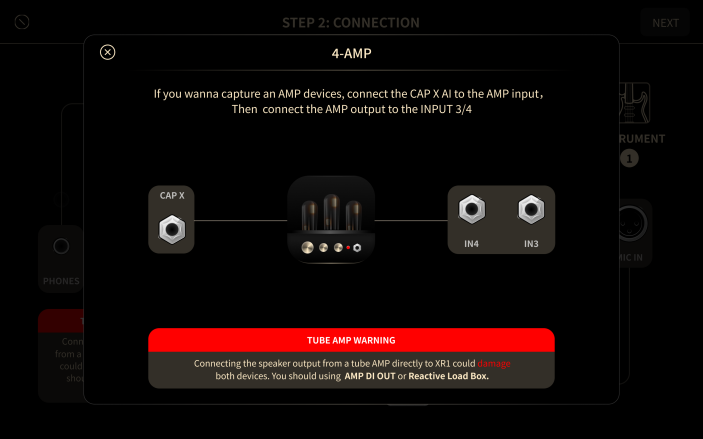
- Never connect the speaker output of an amplifier directly to XR1. Speaker-level signals can damage the unit. Use a microphone in front of the cabinet, or a load box or DI box made for speaker-level signals.
- Keep a speaker cabinet or a suitable load connected to a tube amp whenever it is on.
- Check the input and output level requirements of the target device before you connect it.
- Connect CapX Output on XR1 to the input of the target device.
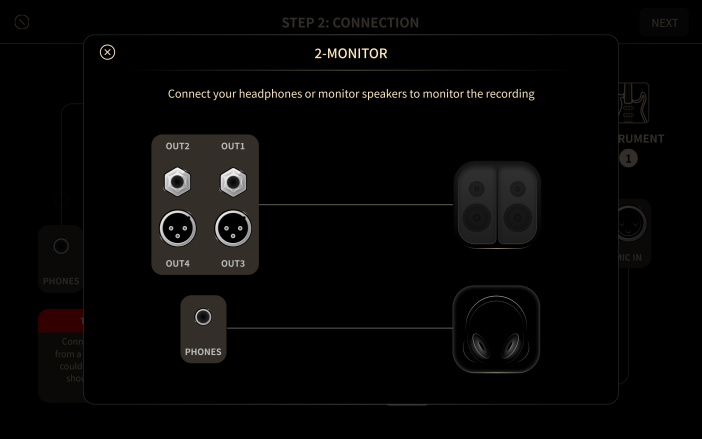
- Bring the sound of the target device back into XR1. To capture an amp through its speaker cabinet, place a microphone in front of the cabinet and connect it to MIC IN.
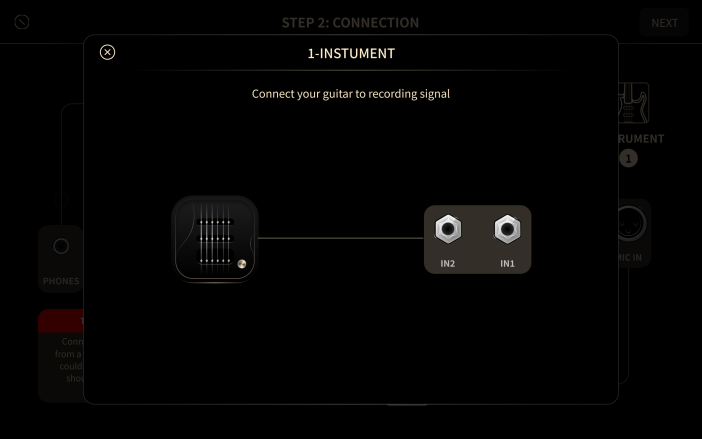
- Connect your instrument to an INPUT jack, so you can compare the capture with the target device afterward.
2. Set Levels
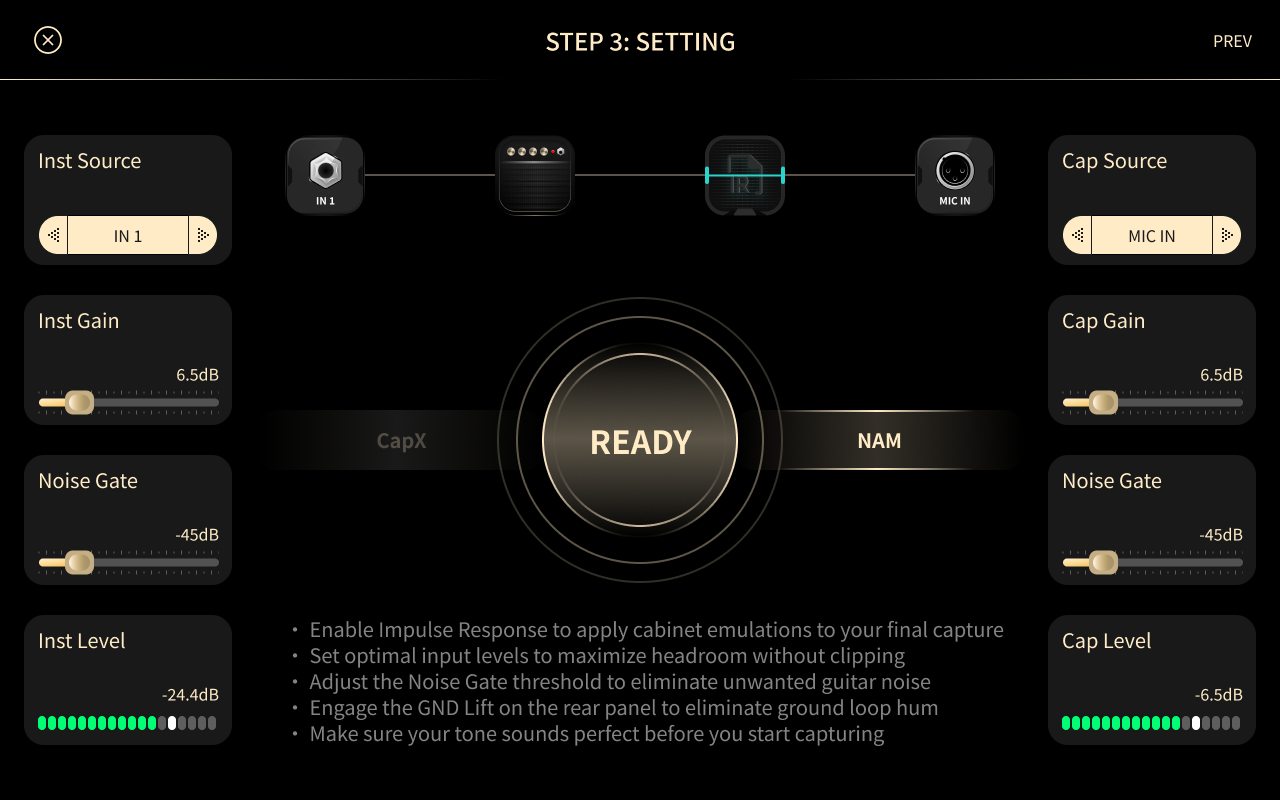
On the SETTING screen, check that the signals are at a suitable level: clearly visible on the meters, but not clipping. Adjust them with the parameters below.
- Inst Source: selects the input your instrument is connected to.
- Inst Gain: sets the instrument input gain. Lower it if the input clips.
- Inst Level: shows the instrument input level.
- Cap Source: selects the input your target device's output is connected to.
- Cap Gain: sets the gain of the signal returning from the target device. Lower it if the signal clips.
- Cap Level: shows the level of the signal returning from the target device.
- Noise Gate: reduces noise from the guitar and the amp.
Then choose how to train:
- NAM Train: trains the capture with Neural Amp Modeler.
- CAPX Train: CapX currently unavailable for OS 1.0.0.
3. Train
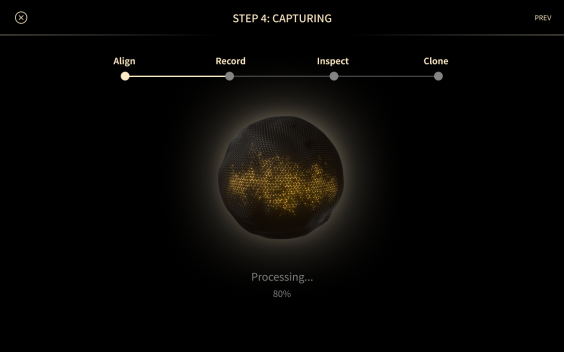
- Do not touch the equipment during training. If you are using a microphone, keep the room quiet until the recording is finished.
- If training fails, go back and adjust the gain so that the returning signal is neither too low nor clipping.
- Tap PREV to stop training and return to the SETTING screen.
4. Audition and Save
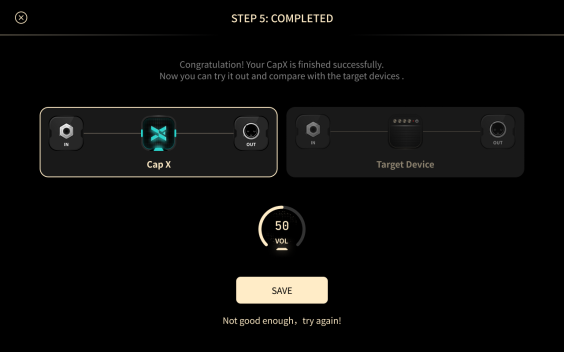
When training is complete, compare the capture with the target device.
- CapX: tap to listen to the capture.
- Target Device: tap to listen to the target device.
- Level: sets the listening level.
- Not good Enough, try again: tap to train the capture again.
- Save: tap to save the capture to File Manager.
Use a Capture
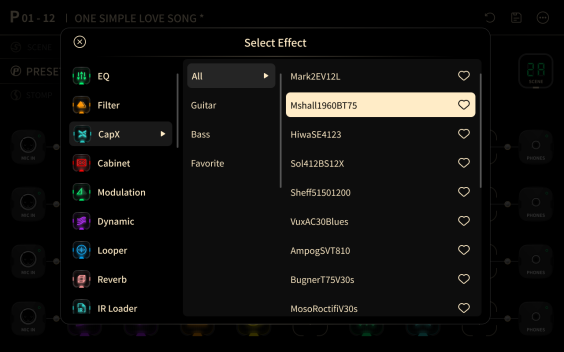
On the Signal Chain screen, open the effect list and tap the CapX or NAM category to see every capture of that type stored on XR1. Add one to the Signal Chain as you would any other effect.