Cloud
Your Xrecer account keeps Presets and captures in the cloud, so you can download them to XR1 or upload what you make. Cloud features need a Wi-Fi connection.
Sign In
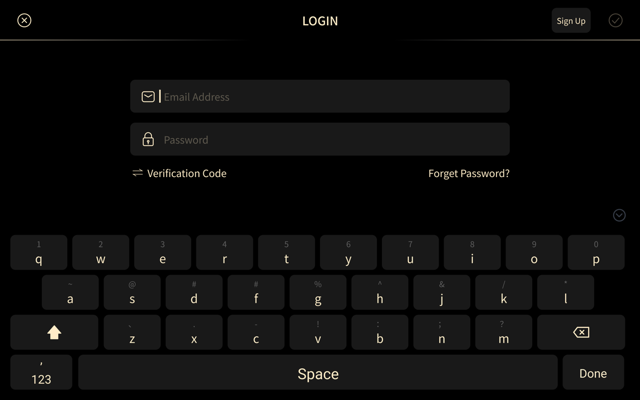
- Open File Manager and tap Login at the bottom of the left column (the person icon).
- Enter your Email Address and Password. Tap the cross to clear a field, or the eye to show the password.
- Tap the check mark in the upper-right corner to sign in.
If you would rather not type a password, switch to Verification Code, tap Send Code, and enter the 4-character code that arrives by email.
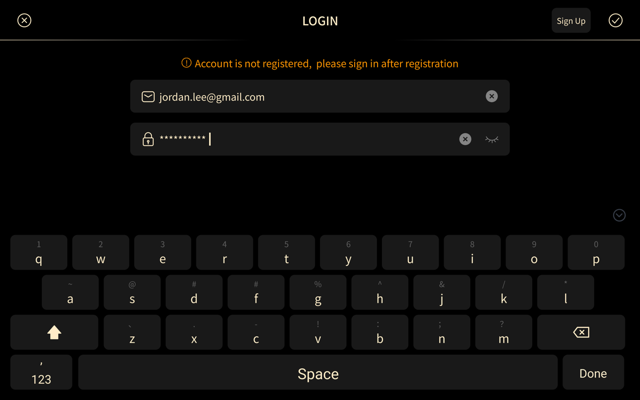
If sign-in fails, XR1 shows a message above the fields.
| Message | What to do |
|---|---|
| Account is not registered, please sign in after registration | The email has no account. Tap Sign Up and create one. |
| Network Error | Check the Wi-Fi connection and try again. |
XR1 stays signed in after you restart it, until you sign out.
Create an Account
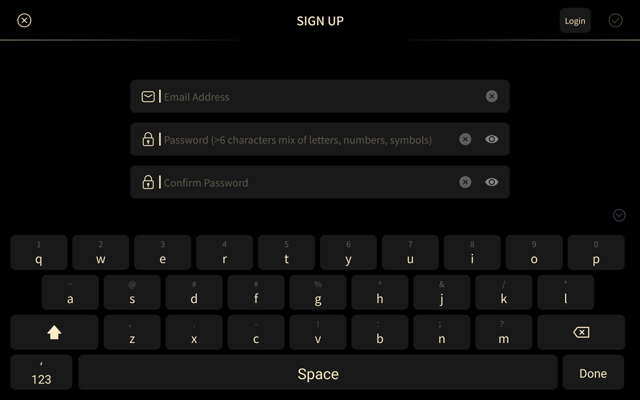
- On the Login screen, tap Sign Up.
- Enter your Email Address, a Password, and the same password again.
- Tap the check mark. XR1 sends a 4-character code to your email.
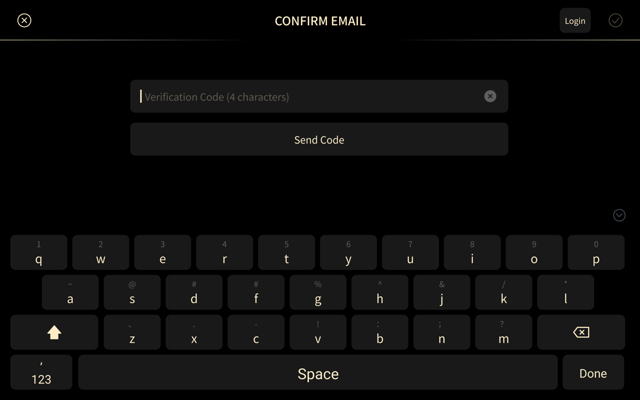
- Enter the code on the Confirm Email screen, then tap the check mark. Tap Send Code to get a new code; XR1 counts down 60 seconds before you can ask again.
When the account is created, XR1 returns to the Login screen with your email already filled in and the password field ready.
| Message | What it means |
|---|---|
| Email Already Exists | This email already has an account. Sign in instead. |
| Password is too simple | Use more than 6 characters, with letters, numbers, and symbols. |
| The two passwords did not match | Type the same password in both fields. |
| Wrong Email format | Check the email address. |
| Verification Failed, Please retry. | The code was wrong or has expired. Tap Send Code for a new one. |
Forgot Password
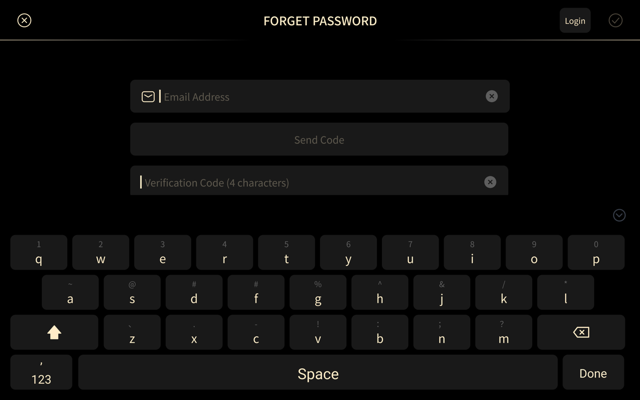
- On the Login screen, tap Forget Password?.
- Enter your email, tap Send Code, then enter the 4-character code.
- On the Reset Password screen, enter the new password twice and tap the check mark.
If you are already signed in, open Account and tap Reset Password instead. That screen asks for the old password, the new password, and the new password again.
Account
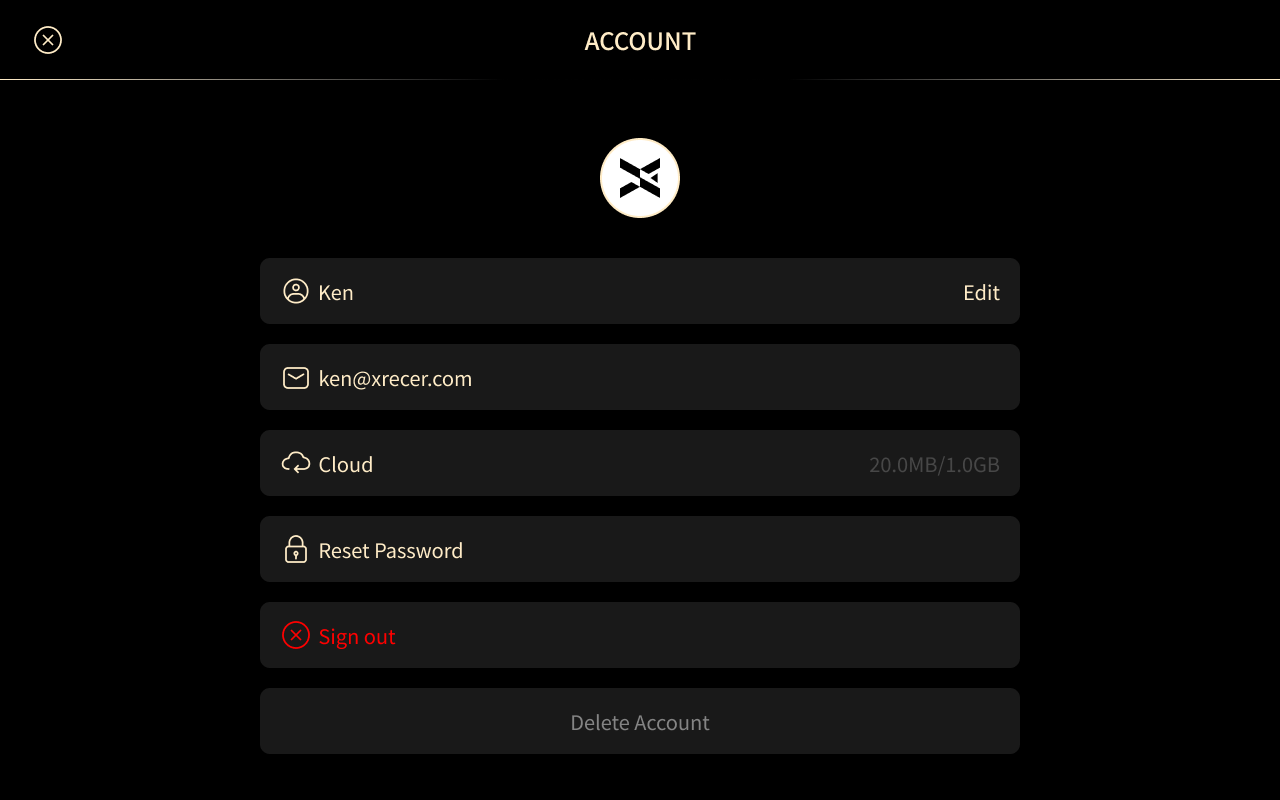
- Avatar and Username: tap Edit to change the name. The name can have up to 24 characters.
- Email: the address of your account.
- Cloud: how much of your cloud storage is in use, for example 20.0MB/2.0GB.
- Reset Password: change the password with the old and new password.
- Sign out: closes the session on XR1. Tap Cancel in the Warning to stay signed in.
- Delete Account: removes the account and all data stored in the cloud. Enter the password to confirm.
Cloud Drive
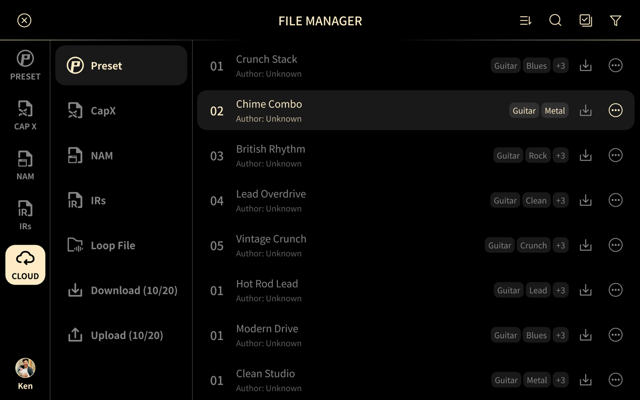
Tap Cloud in the left column of File Manager to browse your cloud files. The categories work like the local ones: tap Preset or CapX in the second column, and XR1 lists the files from your account.
- Each row shows the name, the Author, and the tags of the file.
- Files from other users show Author: Unknown.
- Use Search, Filter, and the sort menu in the top bar the same way as for local files.
Download a Cloud File
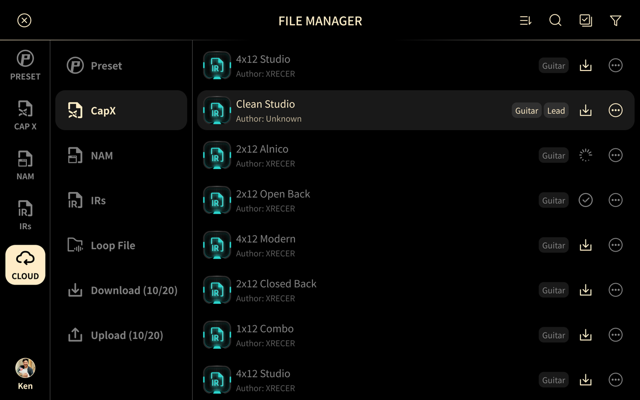
- Tap the download icon on a row. XR1 adds the file to the download records and starts the transfer.
- While the file downloads, the icon shows a progress ring.
- When the download finishes, the icon changes to a check mark.
A check mark means the file is already downloaded. Tap the More (...) button to open the item menu.
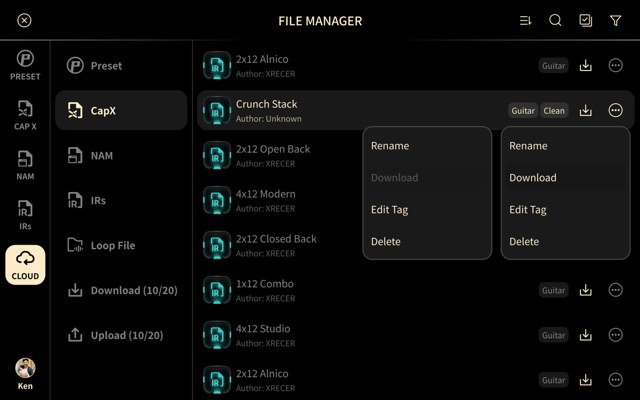
- Rename: changes the name on the cloud.
- Download: downloads the file again. It is dimmed when the file is already downloaded.
- Edit Tag: edits the tags of the file.
- Delete: removes the file from the cloud.
Select Several Files
Tap the multi-select icon in the top bar to select rows, then choose Download, Select All, Move, or Delete. Tap the check mark in the top bar to leave multi-select.
Downloads and Uploads
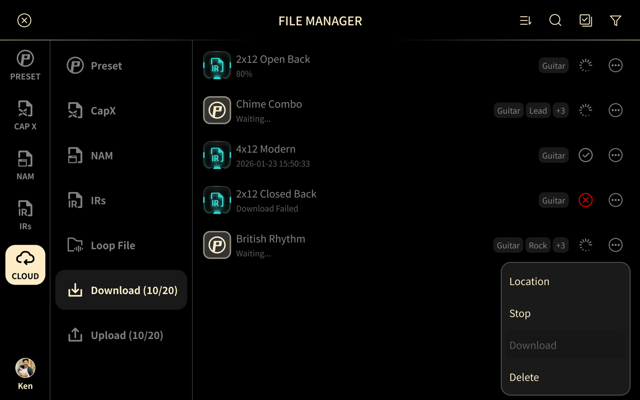
The Download and Upload entries in the left column show how many records they hold, for example Download (10/20). Download records show one of these states:
- A percentage, while the file is transferring.
- Waiting..., when the transfer has not started yet.
- The date and time the download finished.
- Download Failed, when the transfer did not finish.
Open the More (...) menu of a record for Location, Stop, Download, or Delete.
Choose a Download Location
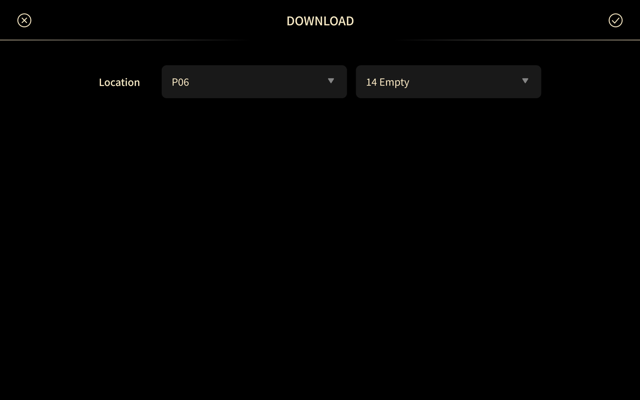
A Preset needs a place in the Preset list before it can be downloaded.
- Open the More (...) menu of a download record and tap Location.
- Choose the Patch (for example P06) and the Preset slot (for example 14 Empty).
- Tap the check mark to confirm.
Limits
| Behavior | Details |
|---|---|
| Concurrent transfers | Up to 3 files at a time. |
| Resume | A transfer that is interrupted starts again from the beginning. |
| Reconnect | XR1 tries to reconnect for 10 seconds when the connection drops. |
| Sign-in | XR1 stays signed in until you sign out. |