File Manager
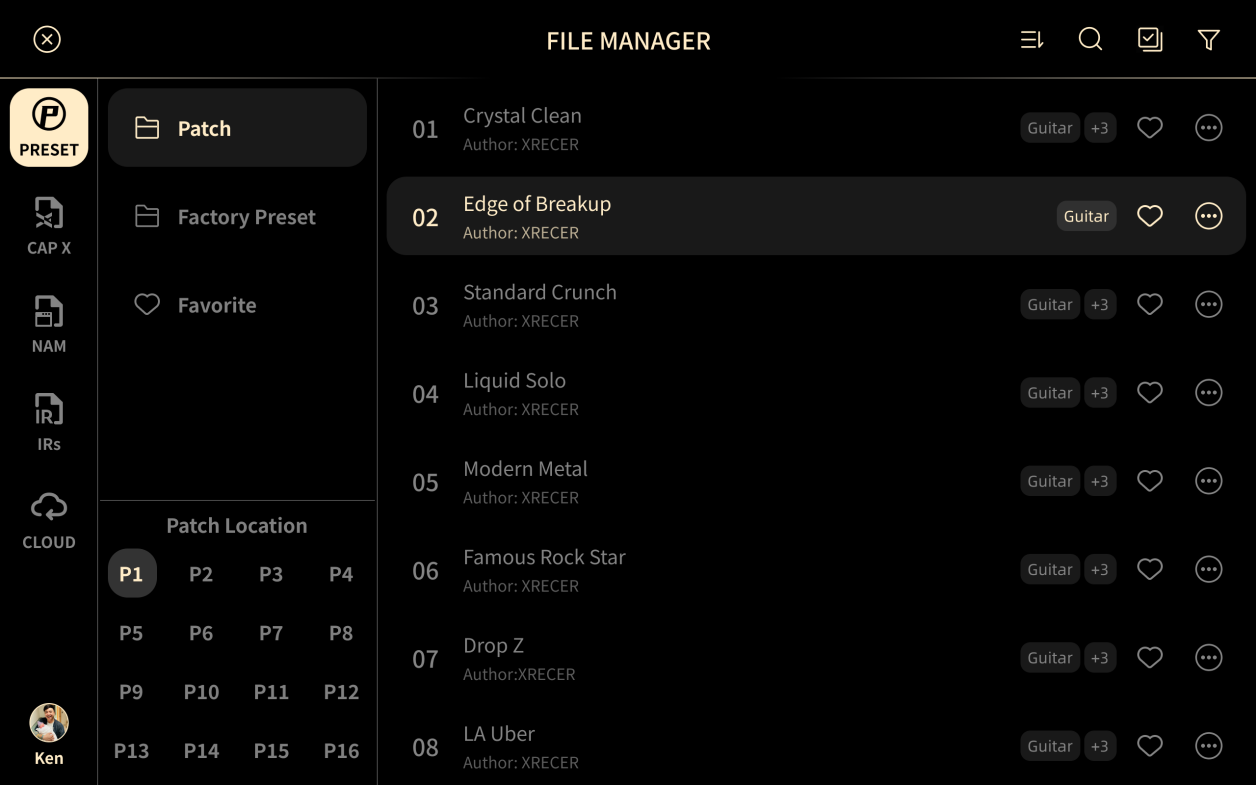
File Manager holds the factory Presets, the Presets you create, your CapX captures, NAM models, and IR files. XR1 has 1,600 slots each for Presets, CapX captures, NAM models, and IRs.
Use Patches to put your Presets in set-list order before a show, so you can switch quickly on stage.
Folders
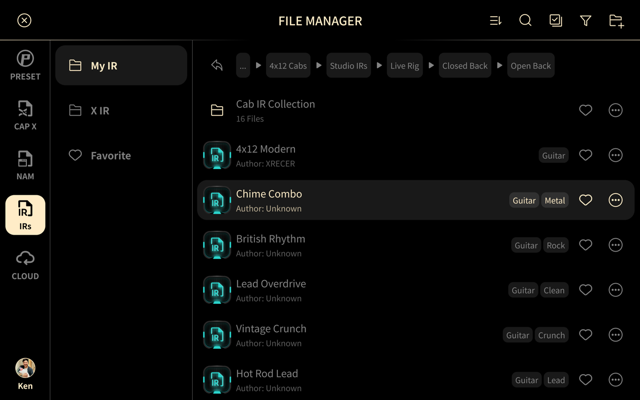
You can group files into folders inside a category, so a long list stays organised.
- A folder row shows the folder name and how many files it holds, for example 16 Files. Tap the row to open the folder.
- The path bar above the list shows where you are. The back arrow returns to the previous list, and tapping a level in the bar jumps straight back to it.
Create a Folder
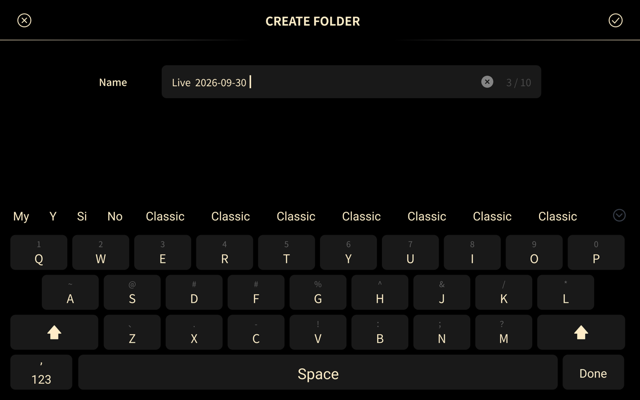
- Tap the create folder button in the top-right corner of the list (a folder with a plus).
- Enter a name. A folder name can have up to 10 characters.
- Tap the check mark in the upper-right corner to confirm.
Rename or Delete a Folder
Tap More (...) on the folder row, then choose Rename or Delete.
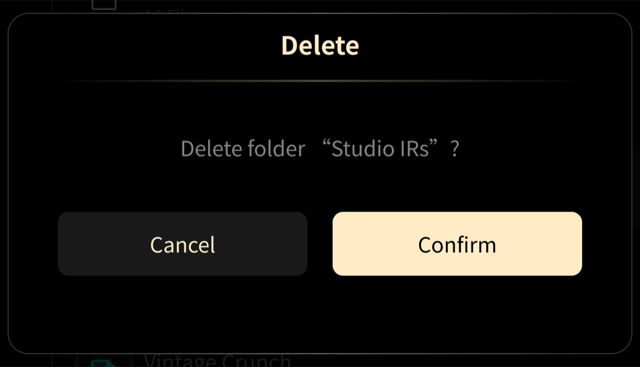
Deleting a folder asks for confirmation. Tap Cancel to keep the folder, or Confirm to delete it.
Upload a File into a Folder
When you upload a file to your cloud account, you choose the folder it goes into.
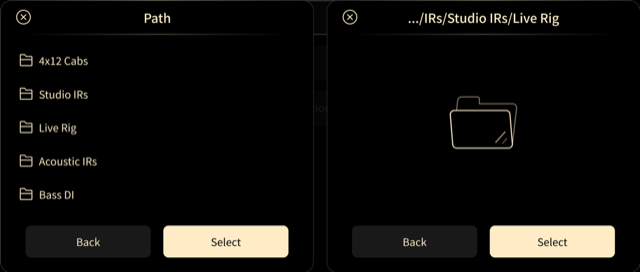
- Start the upload of a file.
- In the Path dialog, tap a folder to open it, or Back to go up one level. The path at the top of the dialog shows the folder you are in.
- Tap Select to upload the file into the folder that the dialog shows.
Download a File into a Folder
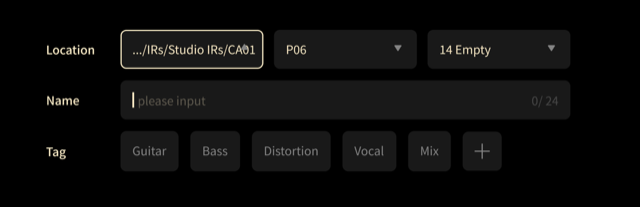
When you download a cloud file, XR1 asks where to put it.
- Tap Location to choose where the file goes: the folder path, then the Patch and the slot for a Preset (for example P06 and 14 Empty).
- Tap Name to give the file a new name. A name can have up to 24 characters.
- Tap a tag to add it to the file, or the plus button to add another tag.
- Tap the check mark in the upper-right corner to start the download.
All Preset
-
Patch
- Each Patch (shown on the right) holds 16 Presets. Drag to change the order of the Patches or of the Presets inside a Patch.
-
Patch Location
- Presets you create are stored here.
-
Factory Preset
- The Presets supplied by XRecer are stored here.
-
Favorite
- Tap
 to add a Preset to your Favorites.
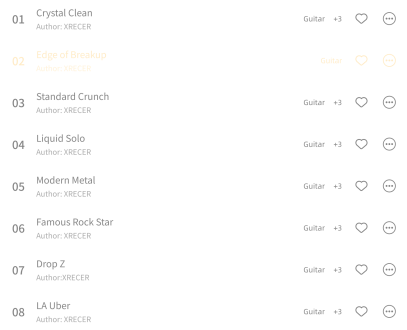
- Tap
-
Preset management
- Move: drag a Preset to a new location.
- Delete: tap More > Delete.
- Rename: tap More > Rename.
- Favorite: tap .
- Tag Management: tap More > Tag Management to add your own tags, so you can filter Presets quickly.
- Copy / Paste: tap More > Copy/Paste.
- Search: tap
 .
- Multi-select: tap
 .
- Filter: tap
 .
CapX

Captures you create with CapX are stored here. Manage them in the same way as Presets.
NAM

Neural Amp Modeler model files (.nam) are stored here.
IR

Manage the factory IRs and the IR files you import here.