Live View
Live View is the performance screen. It shows what each footswitch does, so you can switch Presets, Scenes, and effects while you play.
Open Live View
Swipe up from the bottom of the screen.
Before a show, build the tones you need for each part of a song, save them as Presets or Scenes, and assign them to footswitches. While you play, press footswitches 1–8 to switch, and press the PAGE/LIVE footswitch to change between page 1 (1A–8A) and page 2 (1B–8B).
MOD View
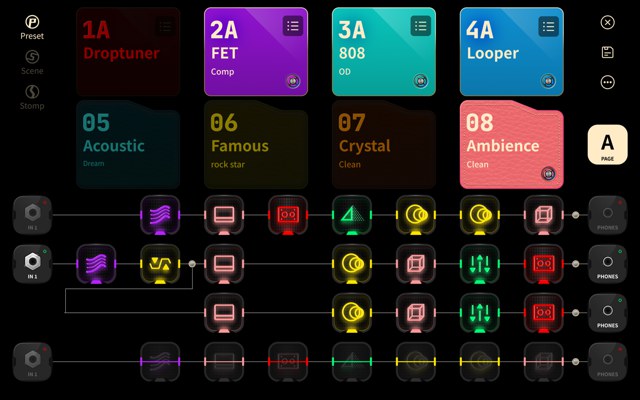
MOD View shows the eight footswitches as large tiles above the Signal Chain, so you can see what each footswitch does and how the effects are chained at the same time.
- Each tile shows the Preset, Scene, or effect assigned to that footswitch.
- The mode icons at the left edge of the screen switch the tiles between Preset, Scene, and Stomp.
- Tap the PAGE button on the right to move between page A (footswitches 1A–8A) and page B (1B–8B).
Rename, Copy, or Paste a Footswitch
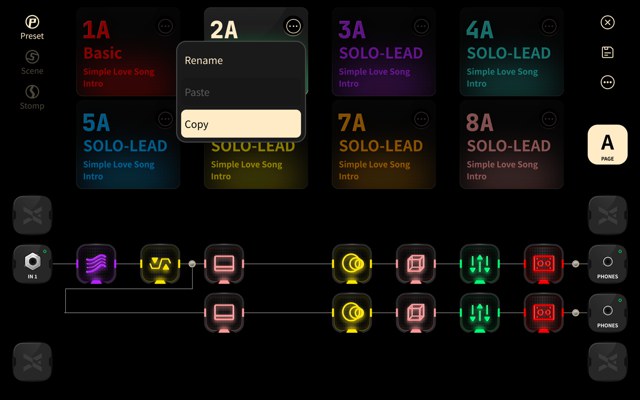
Tap and hold a tile to open its menu.
- Rename: changes the name shown on the tile.
- Copy: copies the footswitch assignment.
- Paste: places the copied assignment on this footswitch.
Move an Assignment
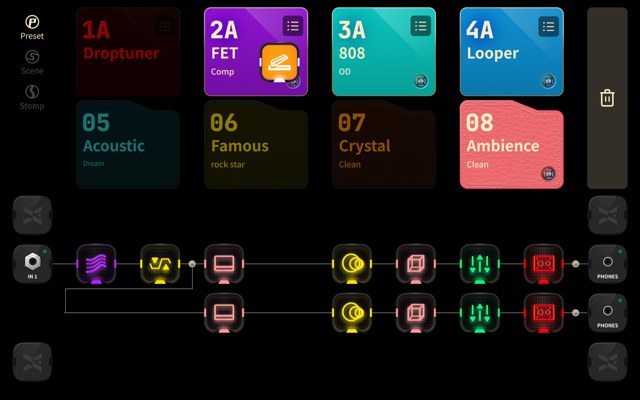
Tap and hold a tile, then drag it onto another tile to move the assignment there. Drop it on the trash icon at the right edge to clear the footswitch.
Open the Effect Parameters
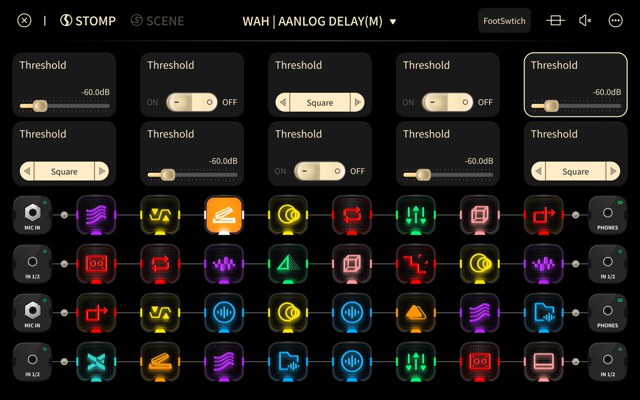
In Stomp mode, each tile shows the effect of its footswitch. Tap a tile to show the parameters of that effect above the Signal Chain. Tap the back arrow in the top bar to return to MOD View with the Signal Chain unchanged.
Mode Editor
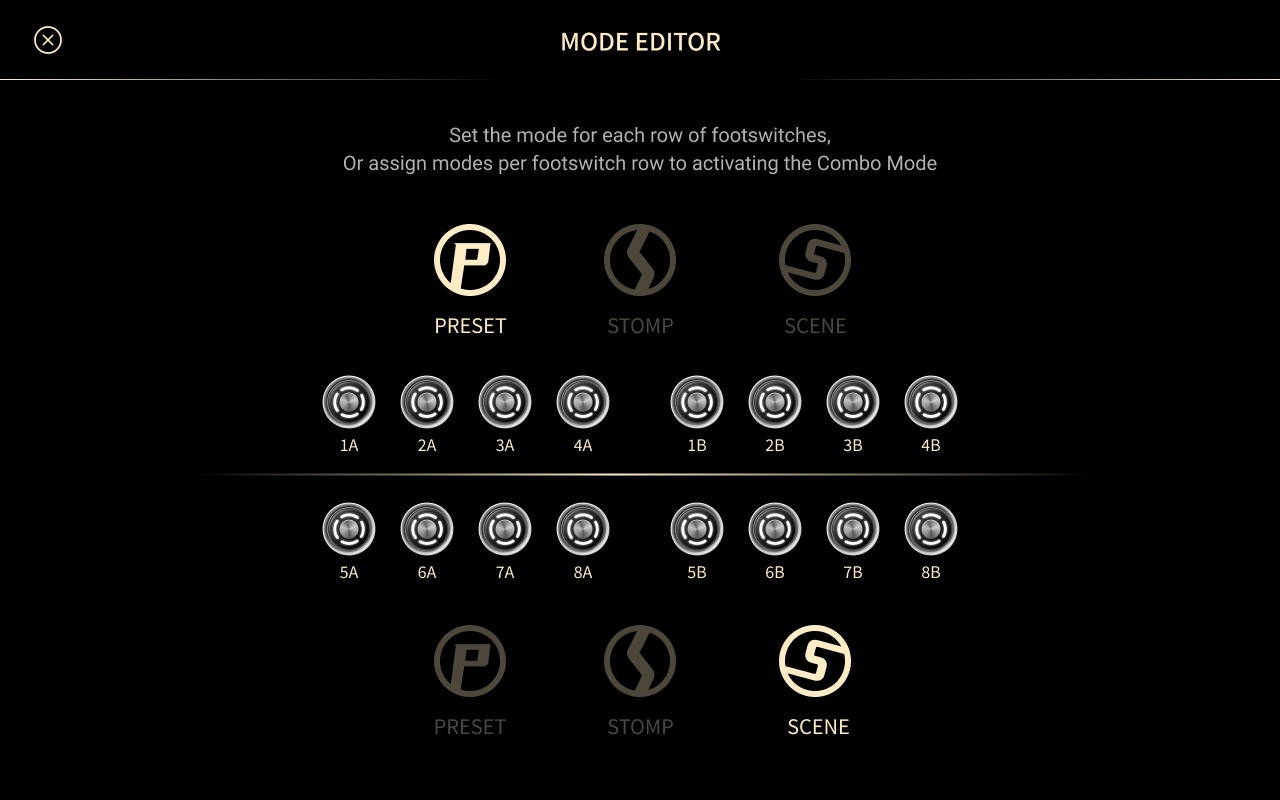
Mode Editor sets what the two rows of footswitches control.
-
Tap and hold the mode name (PRESET, SCENE, or STOMP) in the upper-left corner of the top bar to open Mode Editor.
-
Tap to assign a mode to each row of footswitches.
-
In Combo mode, footswitch row 1 and row 2 each control one of the two modes you assigned.
Preset Mode
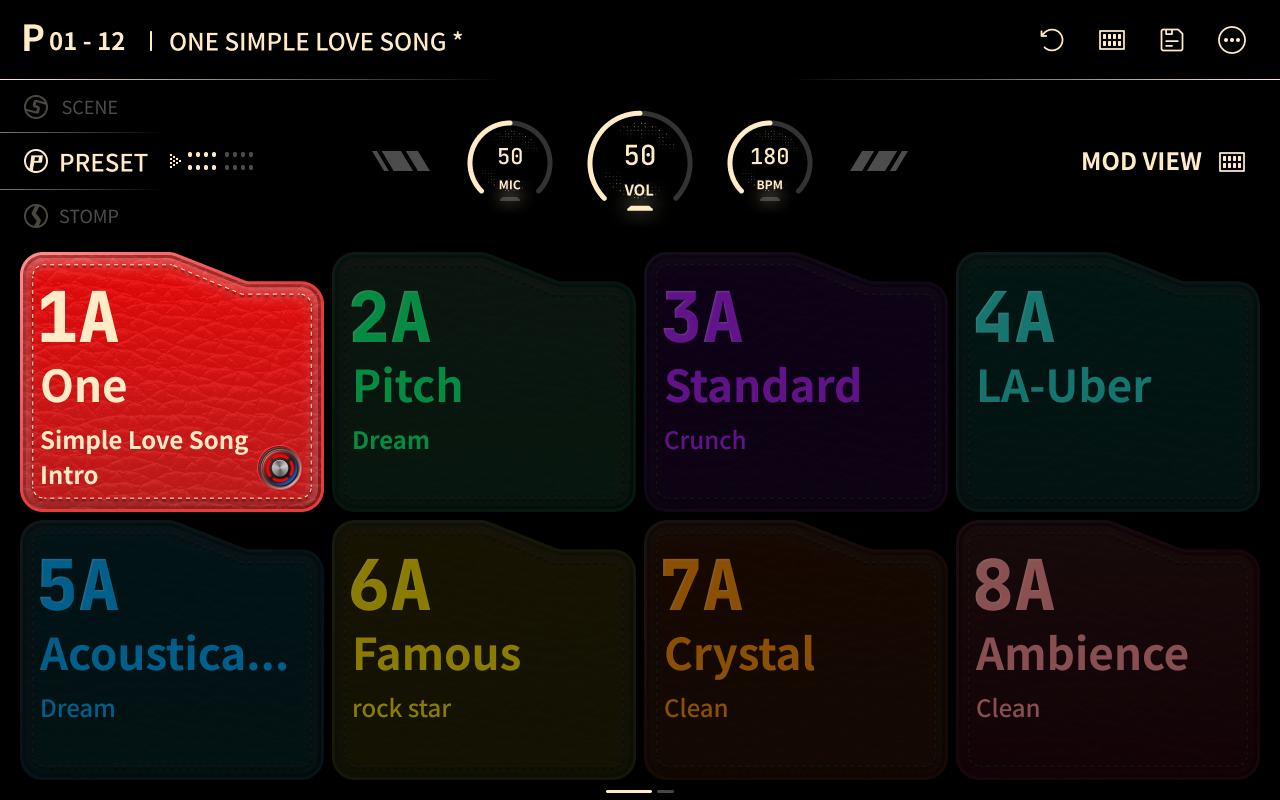
Each Patch contains 16 Presets. Presets 01–08 are assigned to footswitches 1A–8A, and Presets 09–16 are assigned to footswitches 1B–8B.
Scene Mode
Each Preset contains 16 Scenes. Scenes 1A–8A are assigned to footswitches 1A–8A, and Scenes 1B–8B are assigned to footswitches 1B–8B.
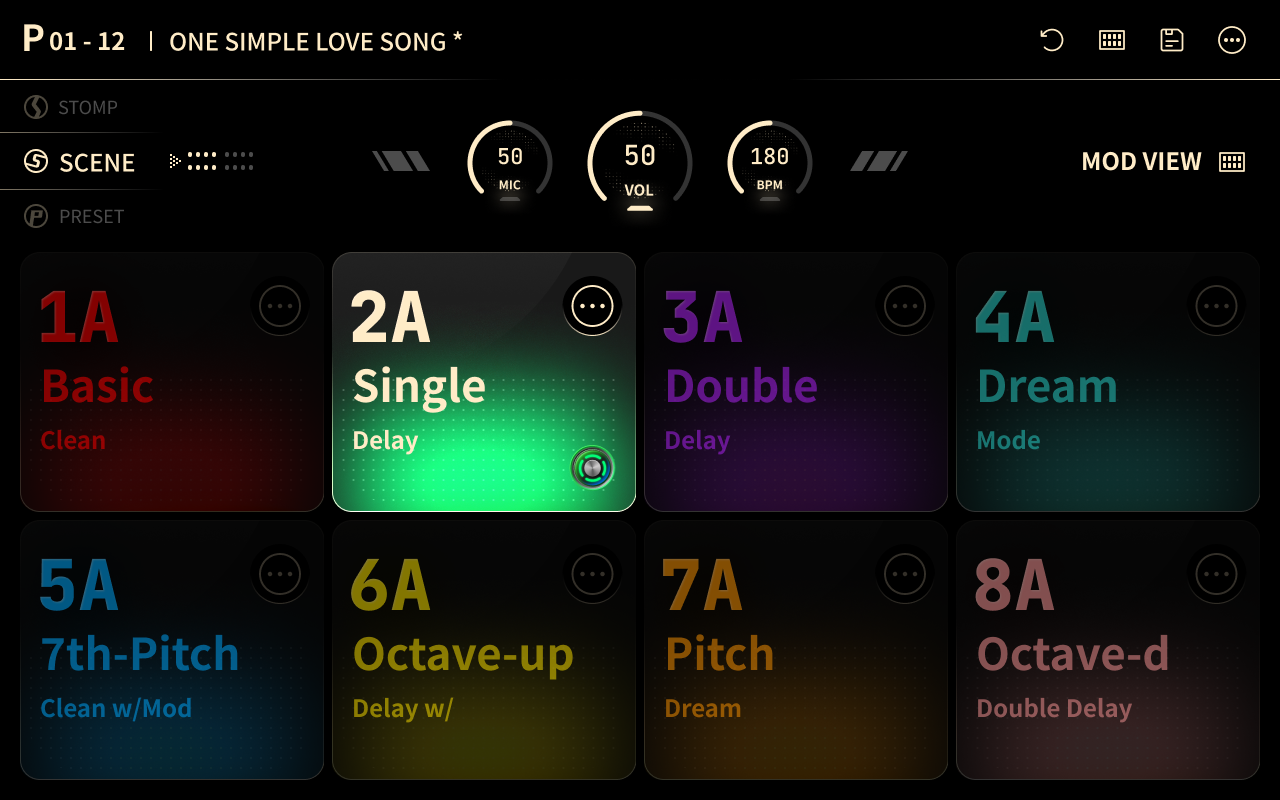
You can rename each Scene and give it a color.
Stomp Mode
You can assign any effect to any footswitch from 1A to 8B. Several effects can share one footswitch.
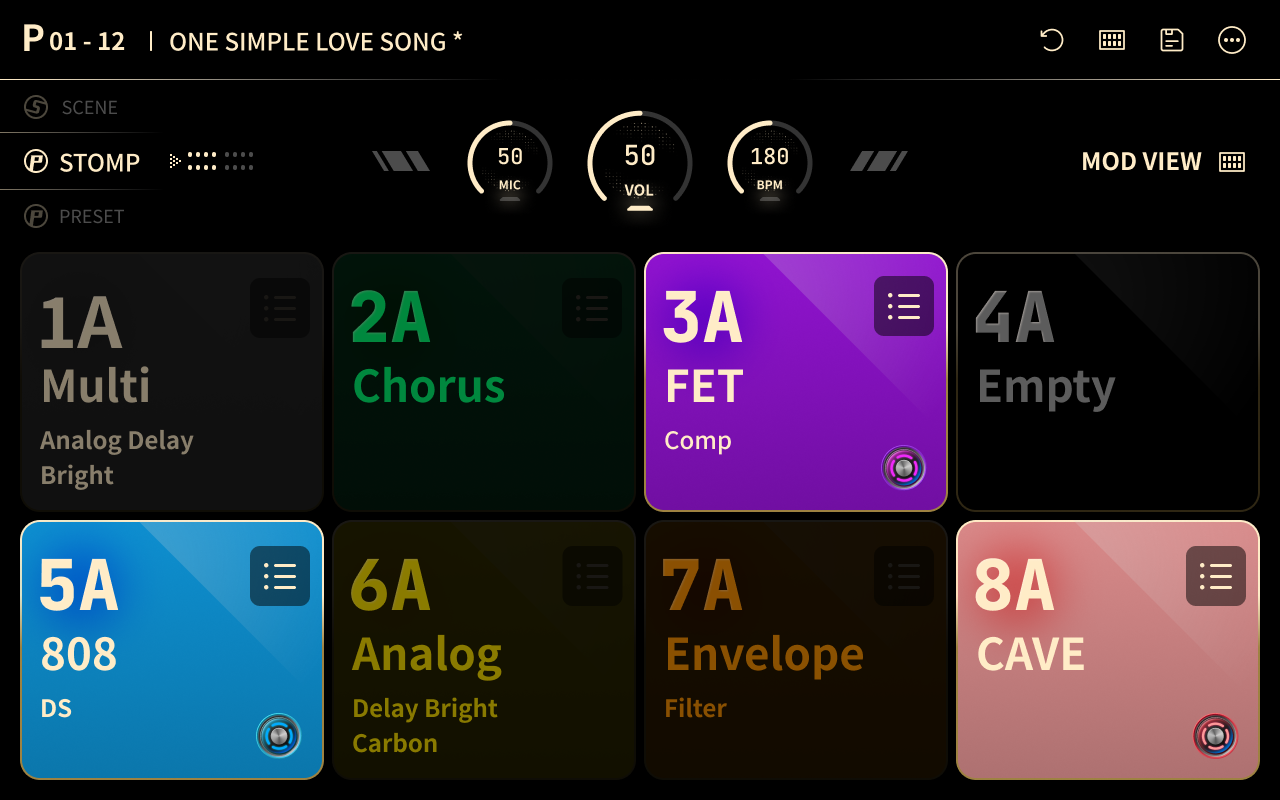
To assign an effect, see Assign a Footswitch.
Combo Mode
Combo mode combines any two of the Preset, Scene, and Stomp modes. Row 1 and row 2 in Live View each control one of them. Set the order in Mode Editor.
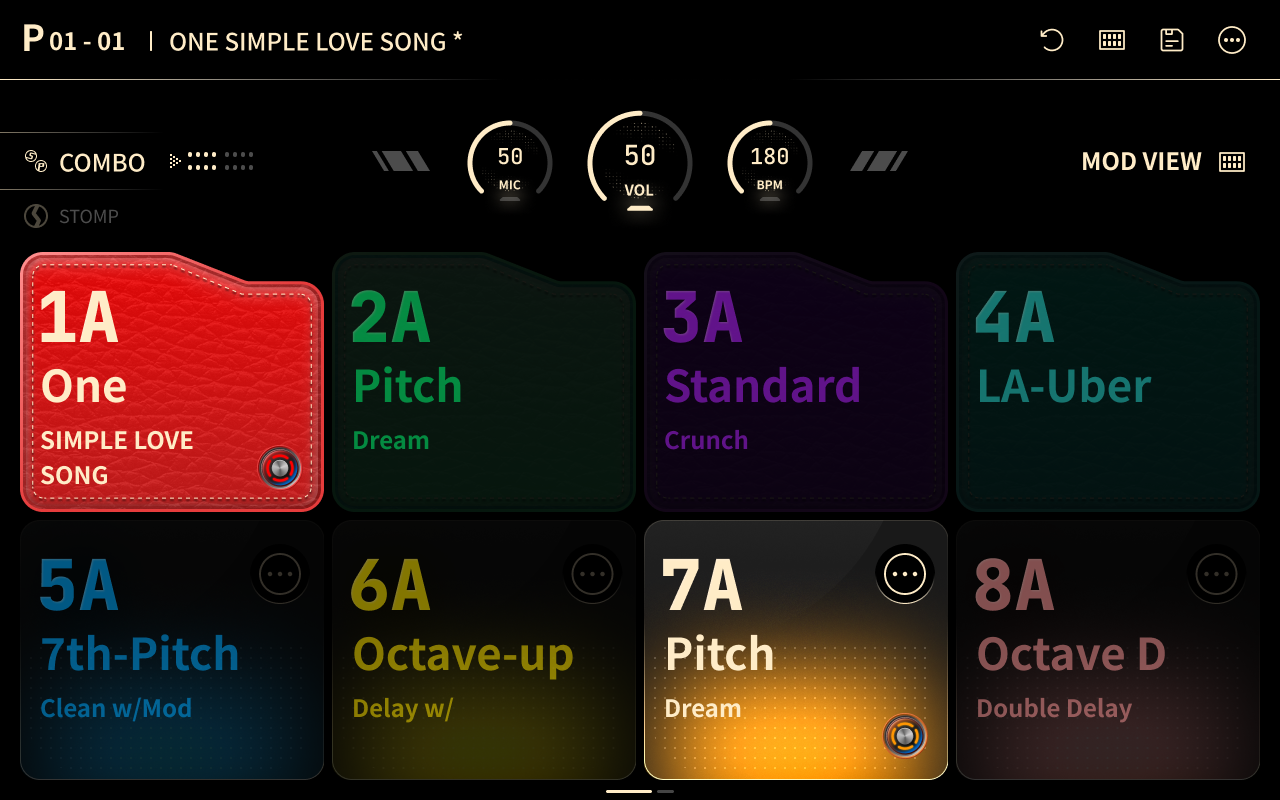
For example, when Preset and Scene are combined and Patch P01 is selected, the footswitches are assigned as follows:
| Footswitch | Page 1 | Page 2 |
|---|---|---|
| 1 | P01-01 | P01-09 |
| 2 | P01-02 | P01-10 |
| 3 | P01-03 | P01-11 |
| 4 | P01-04 | P01-12 |
| 5 | Scene 5A of the current Preset | Scene 5B of the current Preset |
| 6 | Scene 6A of the current Preset | Scene 6B of the current Preset |
| 7 | Scene 7A of the current Preset | Scene 7B of the current Preset |
| 8 | Scene 8A of the current Preset | Scene 8B of the current Preset |
Note
- When you switch Presets, the effects and Scenes change to those stored in the new Preset.
- When Scene and Stomp are combined, switching to a Scene returns every effect to the settings stored in that Scene.