Looper
The Looper records what you play and plays it back in a loop, so you can layer parts on top of each other. You can record loops live or prepare them in advance. Even when you perform alone, you can build a full sound.
Add the Looper
Find the Looper in the effect list and add it anywhere in the Signal Chain. It records the signal at that point, including every effect placed before it.
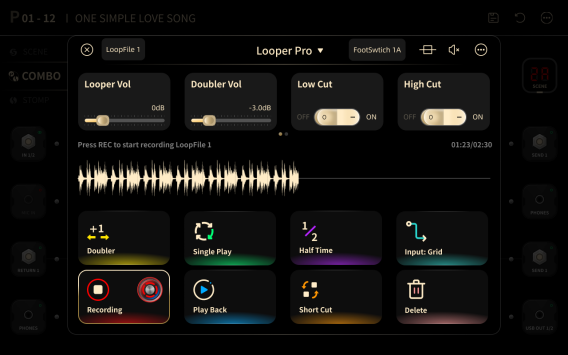
Looper Controls
Tap the Looper to open the recording screen. By default, the controls below are also assigned to the matching footswitches.
REC
- Nothing recorded: the button shows REC. Tap it to record a new loop.
- Recording the first pass: the button shows Overdub. Tap it to save the loop, start playback, and begin an overdub.
- Loop recorded, stopped: the button shows REC. Tap it to clear the old loop and start a new recording.
- Loop recorded, playing: the button shows Overdub. Tap it to start an overdub at the current playback position.
- Overdubbing: tap to finish the current overdub, merge it with the earlier layers, and begin another overdub.
Playback
- Nothing recorded: the button shows Playback and is disabled until you record a loop.
- Loop recorded, stopped: the button shows Playback. Tap it to start playback.
- Playing: the button shows Stop. Tap it to stop playback.
- Recording the first pass: the button shows Playback. Tap it to finish recording and start playback.
- Overdubbing: the button shows Stop. Tap it to stop playback.
Delete
- Clears everything recorded in the current session.
- If recording or playback is running, both stop.
Doubler
- Stopped: tap to double the length of the recorded loop by repeating it.
- Playing: tap to double the length of the loop and extend the playback time.
- Recording the first pass: tap to finish and save the recording, start playback, and begin an overdub.
- Overdubbing: if the overdub runs longer than the original loop, Doubler repeats the original loop automatically to match. For example, you can record a four-bar melody over a one-bar loop that repeats four times.
- After doubling, tap Cut at any point to delete the audio after that point, so the loop does not have to be an exact multiple of the original length.
Single Play
- Stopped: tap to play the loop once.
- Playing: tap to play to the end of the current pass, then stop.
- Recording the first pass: tap to finish and save the recording, then play the loop once.
- Overdubbing: tap to finish and save the overdub. Playback stops at the end of the current pass.
Half Time
- Tap to play back and record at half speed.
Short Cut
- Tap to start recording a replacement from the current playback position. Tap again to finish.
Parameters
- Playback Level: −50 dB to 0 dB.
- Doubler Level: −50 dB to 0 dB. For example, at −5 dB each new layer lowers the earlier layers by 5 dB.
- High Pass: reduces frequencies below the selected frequency.
- Low Pass: reduces frequencies above the selected frequency.
- Threshold: when on, recording starts when the input level passes the threshold, not at the moment you tap REC.
- Quantize: when on, the start and end of the recording are aligned to the selected beat.
Loop Files
You can save a recording as a Loop File. XR1 stores up to eight Loop Files.
Save a Loop File
-
Tap Loop File at the top of the screen.
-
Select a slot.

-
Add the Loop File to a LOOP path in the Signal Chain. See LOOP path.