TONE3000
TONE3000 is an online library of NAM captures shared by the TONE3000 community. When XR1 is connected to Wi-Fi, you can browse and download tones from the Select Effect screen without using a computer.
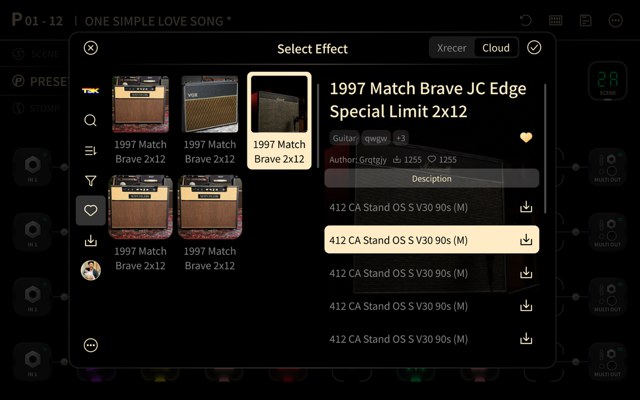
Open the Cloud Library
- Open the Signal Chain screen, tap Add Effect, or tap and hold an existing effect block and choose Replace effect.
- In Select Effect, tap T3K at the top of the screen. Device is the list of effects stored on XR1; T3K is TONE3000.
- Tap the check mark in the upper-right corner to confirm, or the cross in the upper-left corner to go back without changing the effect.
Sign In
The first time you open the T3K tab, XR1 asks you to sign in to TONE3000 with a QR code.
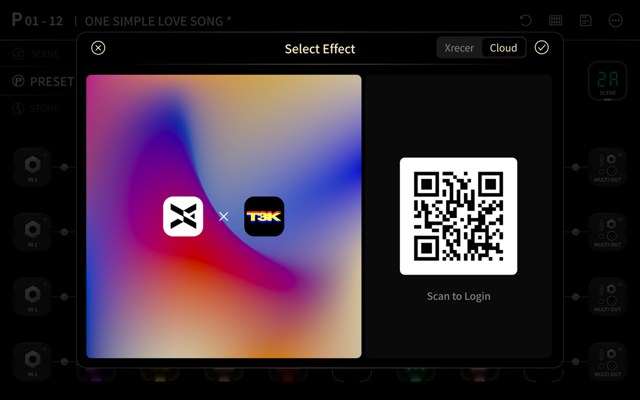
- Scan the QR code with the TONE3000 app on your phone.
- Confirm the sign-in on your phone. XR1 opens the Cloud library when sign-in completes.
If XR1 cannot reach TONE3000, it shows one of the following screens instead.
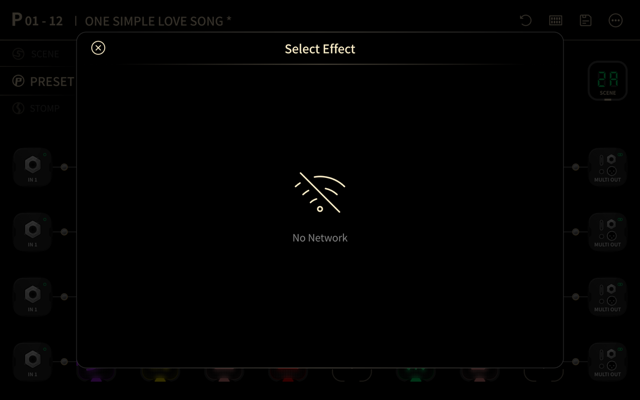
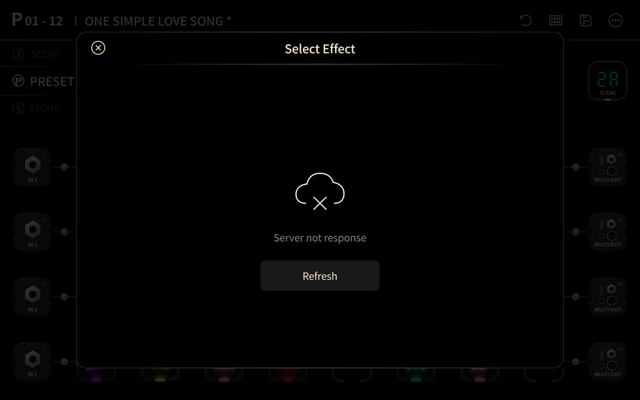
- No Network: XR1 is not connected to Wi-Fi. Connect to a network in Settings, then open the T3K tab again.
- Server not responding: TONE3000 did not answer. Tap Refresh to try again.
Browse Tones
- The left side lists the tones. Each card shows a thumbnail and the tone name.
- The selected tone is outlined, and its details appear on the right.
- Swipe up or down in the list to see more tones.
- The first tone in the list is selected when the T3K tab opens.
The icons down the left edge of the screen switch what the list shows.
| Icon | Use |
|---|---|
| TONE3000 logo | Shows all tones. |
| Search | Searches the library by name. See Search. |
| Sort | Changes the order of the list. See Sort. |
| Filter | Shows only one kind of tone. See Filter. |
| Heart | Shows the tones you marked as favorites. See Favorites. |
| Download | Shows the files you have already downloaded. See Downloads. |
| Avatar | Shows the tones you created. See My Creations. |
| More (...) | Opens the account menu, which contains Sign Out. See Sign Out. |
Tone Details
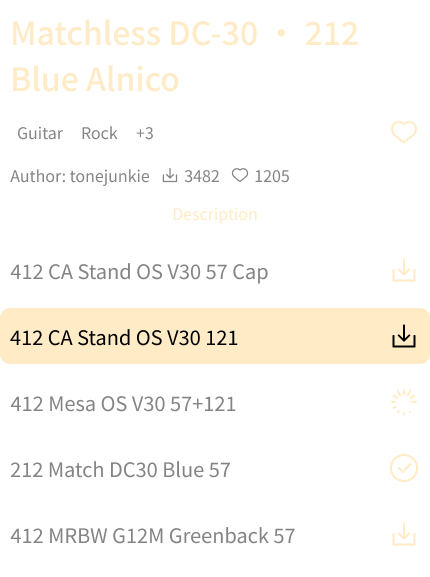
- Tone name: the name of the capture, for example 1997 Match Brave JC Edge Special Limit 2x12.
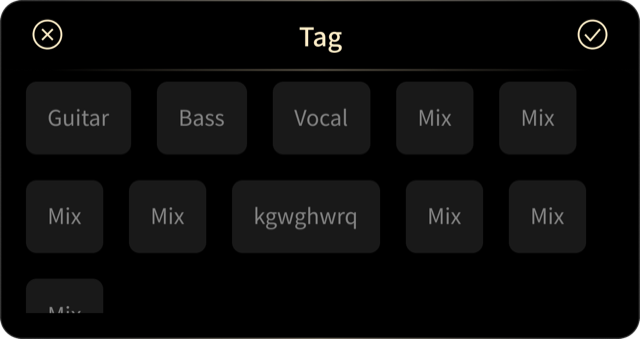
- Tags: the tags that describe the tone. Tap +3 to see the rest of them.
- Author: the person who uploaded the tone. The two numbers next to it are the likes and the number of downloads.
- Description: tap Expand description to show the full text, or Collapse description to hide it. The setting stays as you switch between tones.
- Heart: marks the tone as a favorite. See Favorites.
- File list: the files in this tone, each with its own Download button.
Download a File

- Tap the file you want, then tap its Download button.
- While the file downloads, the button shows a progress ring.
- When the download finishes, the button changes to a check mark, and XR1 adds the file to the Signal Chain.
XR1 saves downloaded tones in the NAM folder of the tone library, under TONE3000 and the name of the tone.
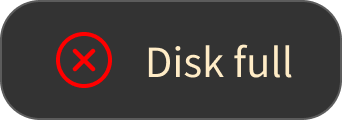
If something goes wrong, XR1 shows a message at the top of the screen.
| Message | What to do |
|---|---|
| Disk full | There is no room for the file. Delete tones you no longer use in the File Manager, then try again. |
| Network Error | XR1 lost the connection to TONE3000. Check Wi-Fi and try again. |
| Timeout, please retry | TONE3000 took too long to answer. Try again. |
Sort
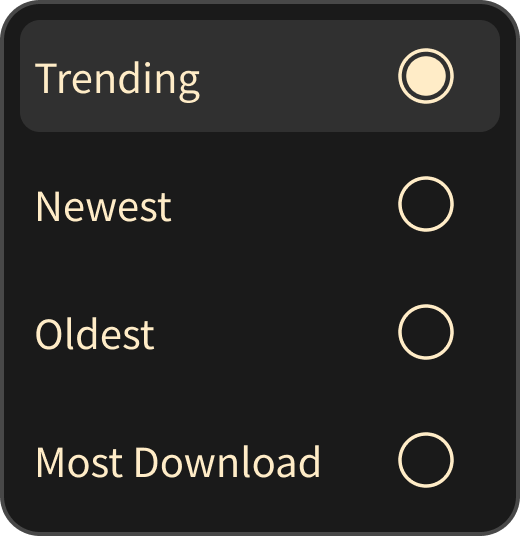
Tap Sort to change the order of the list.
- Trending: the tones that are popular on TONE3000 right now. This is the default.
- Newest: the most recently uploaded tones first.
- Oldest: the oldest tones first.
- Most Download: the tones with the most downloads first.
Filter
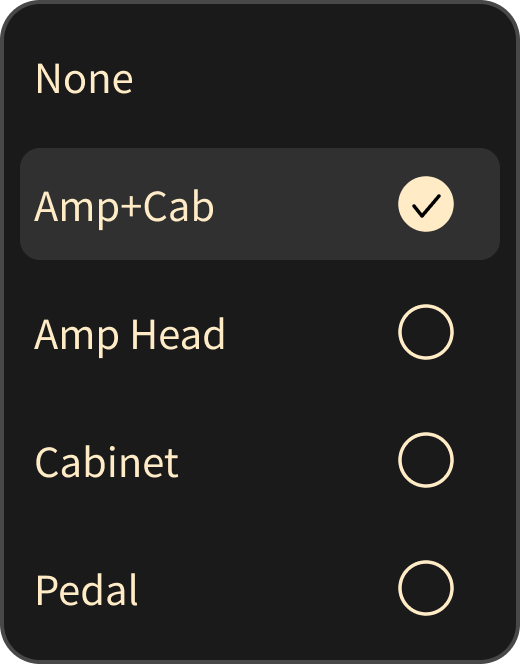
Tap Filter to show only one kind of tone.
- None: shows every tone.
- Amp+Cab
- Amp Head
- Cabinet
- Pedal
The filter uses the tags from TONE3000. Only NAM files in the A2 format are listed. When you download a tone, the tag is stored with the file on XR1.
Search
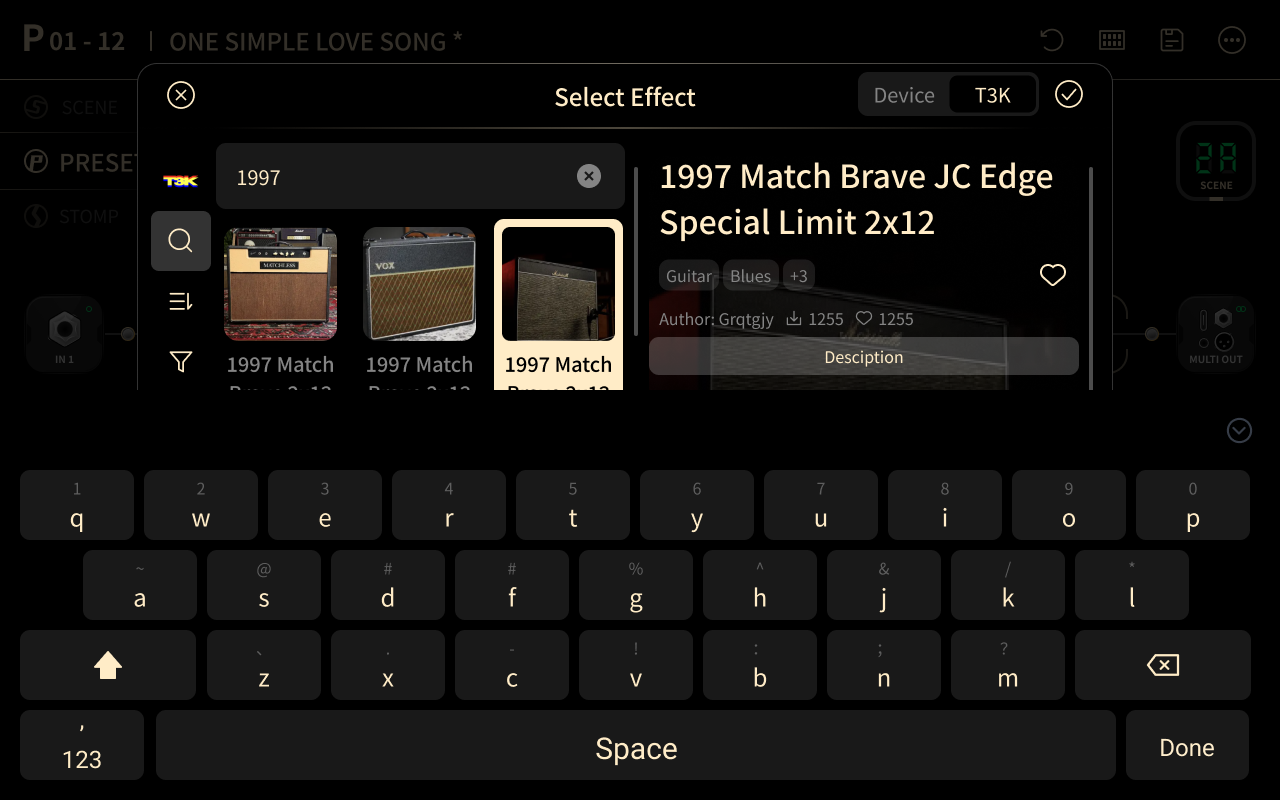
- Tap Search, then type a name with the on-screen keyboard.
- Tap Done to start the search.
Tap the cross inside the search field to clear the search and return to the list.
Favorites
Tap the heart icon to show only the tones you marked as favorites. Tap the heart in the tone details to add or remove the selected tone.
Favorites are stored in your TONE3000 account, so you must be signed in to use them.
Downloads
Tap the download icon to show only the files you have already downloaded. Downloaded files are marked with a check mark in the tone details.
Downloaded files stay on XR1 after you sign out, and you can use them without a Wi-Fi connection.
My Creations
Tap your avatar to show only the tones you uploaded to TONE3000.
Sign Out
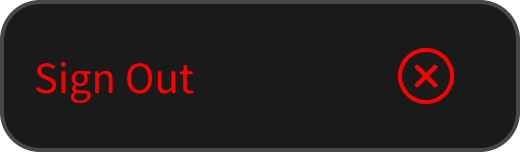
Tap More (...), then tap Sign Out. Tap the cross next to Sign Out to cancel. Downloaded files stay on XR1.
Troubleshooting
| Problem | What to do |
|---|---|
| The T3K tab shows a QR code every time | Sign-in did not complete. Scan the QR code again and confirm on your phone. |
| No Network | Connect XR1 to Wi-Fi in Settings. |
| Server not responding | Tap Refresh. If the screen returns, TONE3000 is unavailable; try again later. |
| Disk full | Delete unused tones in the File Manager. |