USB Routing
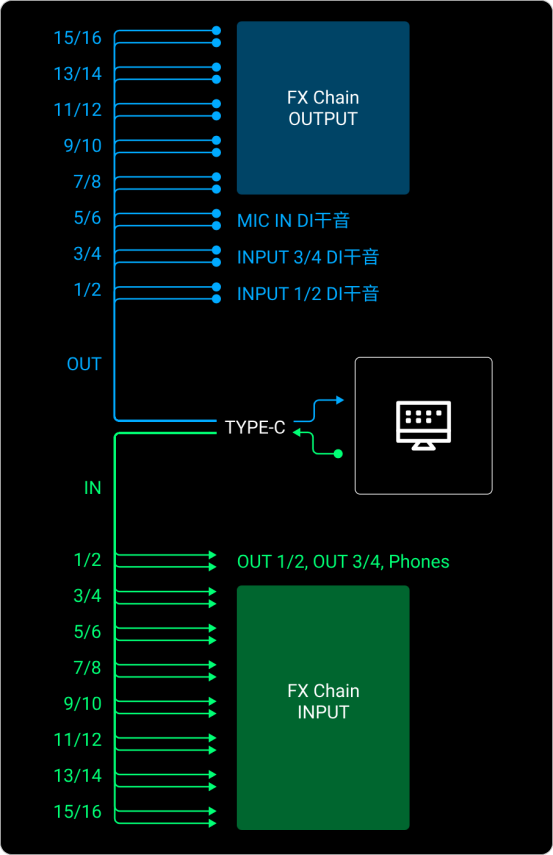
XR1 is a 16-in/16-out USB audio interface. Connect the USB-C port to your computer to record, re-amp, and play backing tracks. The diagrams below show the USB signal flow.
In this chapter, USB OUT means audio sent from XR1 to the computer, and USB IN means audio sent from the computer to XR1.
USB OUT (XR1 to Computer)
-
By default, USB OUT 1/2, 3/4, and 5/6 carry the dry DI signals from MIC IN and INPUT 1–4.
-
To record a dry DI signal, select USB OUT 1/2, 3/4, or 5/6 as the track input in your DAW.
-
Assign the other USB OUT channels in the Signal Chain output settings. See Select an Output.
USB IN (Computer to XR1)
- By default, USB IN 1/2 is routed to OUT 1/2, OUT 3/4, and PHONES. To play backing tracks from your computer, connect the USB cable. No other setup is needed.
- Assign the other USB IN channels as Signal Chain inputs. See Select an Input.
DAW Setup
-
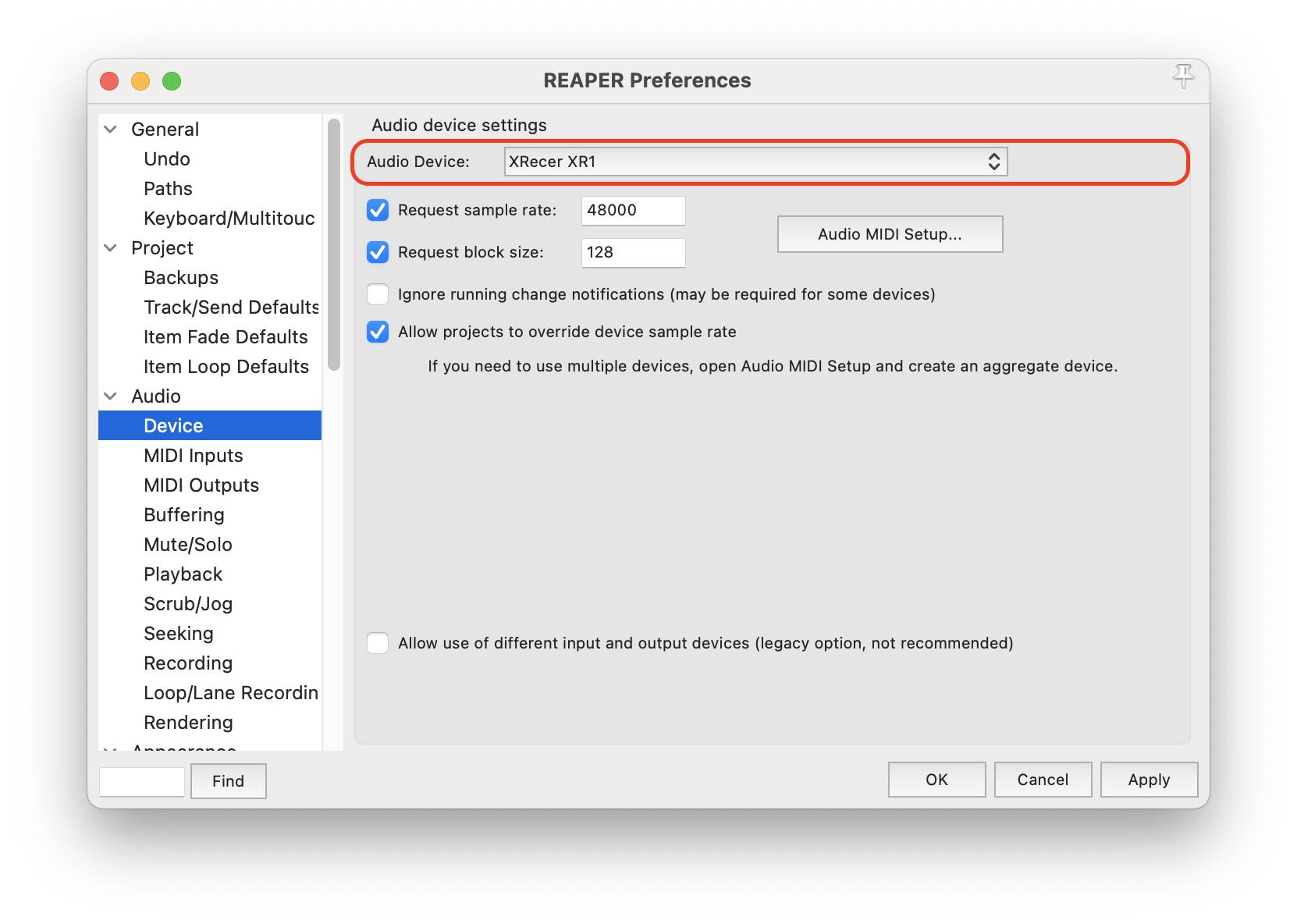
In your DAW, select XR1 as the audio input device. To process audio in the DAW and send it back to XR1, also select XR1 as the output device.
-
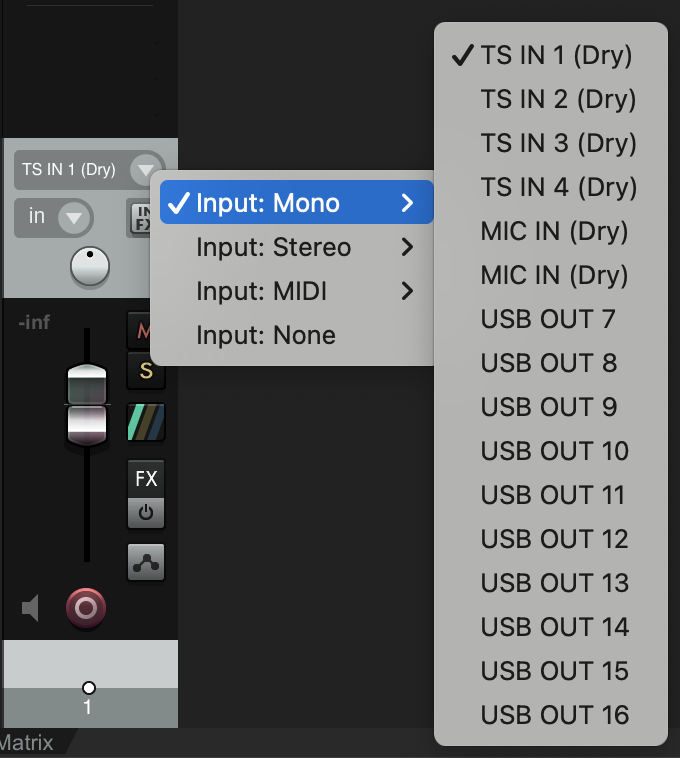
On each track, select the USB input and output channels you need.
-
The track now receives audio from XR1.
-
To use USB IN 3–16 or USB OUT 7–16, assign those channels in the Signal Chain first.
Driver Installation
On Windows, install the XRecer ASIO driver first. Download it from the Download page on xrecer.com.